How to Set Up DKIM for Google Workspace
Learn how to set up and verify DKIM for Google Workspace to protect your domain and improve email deliverability.
DKIM (DomainKeys Identified Mail) protects your domain from spoofing and phishing while improving deliverability. It works by adding a cryptographic signature to outgoing emails so receiving servers can verify authenticity and message integrity.
This guide explains how to generate, add, enable, and verify DKIM for Google Workspace.
Automatic DKIM Setup with Google Domains
If your domain is managed through Google Domains, a DKIM key is automatically created and added to your DNS during Google Workspace setup.
In this case, you only need to enable DKIM signing from the Admin console.
Step 1: Generate the DKIM Record
Prerequisites
You must be signed in as a Super Admin.
Gmail must be enabled for your organization.
Wait 24 to 72 hours after enabling Gmail before generating the DKIM key.
Steps
Sign in to the Google Admin Console.
Go to:
Menu → Apps → Google Workspace → GmailClick Authenticate email.
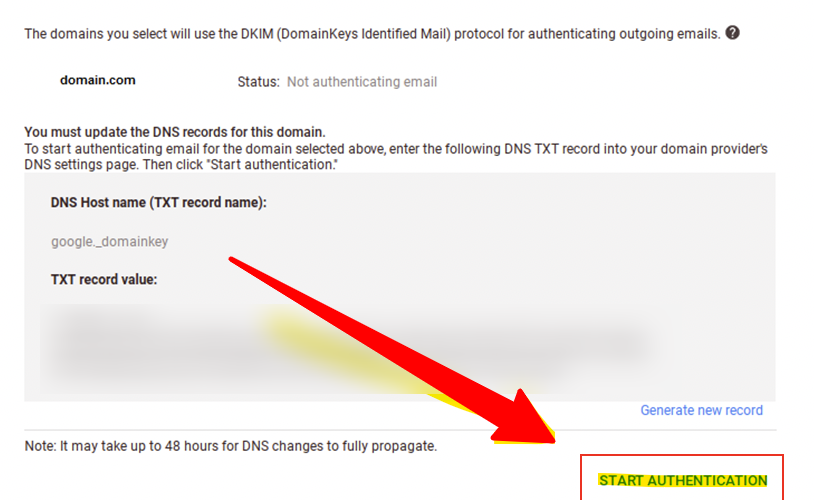
Select the domain you want to configure.
Click Generate new record.
Configure DKIM Settings
DKIM key bit length
Use 2048 bits if supported.
Use 1024 bits only if 2048 is not supported.
Prefix selector
Use the default selector
googleunless already in use.
Click Generate, then copy:
DNS host name (TXT record name)
TXT record value (DKIM key)
Step 2: Add the DKIM Record to DNS
Log in to your domain provider.
Open DNS settings.
Create a new TXT record:
Host/Name: Paste the DNS host name
Value: Paste the DKIM key
Save changes.
Important Notes
DNS propagation can take up to 48 hours.
Repeat the process for each domain or subdomain used for sending.
Step 3: Enable DKIM Signing
Return to the Admin Console.
Go to:
Menu → Apps → Google Workspace → Gmail → Authenticate emailSelect your domain.
Click Start authentication.
The status will update once DKIM signing is active.
Step 4: Verify DKIM
Send a test email to a Gmail or Google Workspace inbox.
Open the email.
Click Show original to view headers.
Confirm that DKIM shows as pass or OK under Authentication Results.
If DKIM does not appear:
Recheck the DNS record
Confirm the selector matches
Allow additional time for propagation
Important
Disabling DKIM is not recommended, as it increases spoofing risk. Only turn it off after evaluating the security impact.
Also check
DKIM: What, Why, and How to Set it up?
What Is an SPF Record
DMARC: What, Why, and How to Set it up?
Technical Checklist Before Starting Email Warm-up