How to Configure Google with Trulyinbox?
Connect your Google email to TrulyInbox using SMTP/IMAP so you can start warming up your mailbox and improve deliverability.
This guide explains how to connect your Google email account to TrulyInbox using the SMTP/IMAP method. Once connected, TrulyInbox can start sending and receiving warm-up emails automatically.
Step 1: Add an Email Account in TrulyInbox
Log in to your TrulyInbox account. From the dashboard, click the Add Email Account button in the top-right corner.
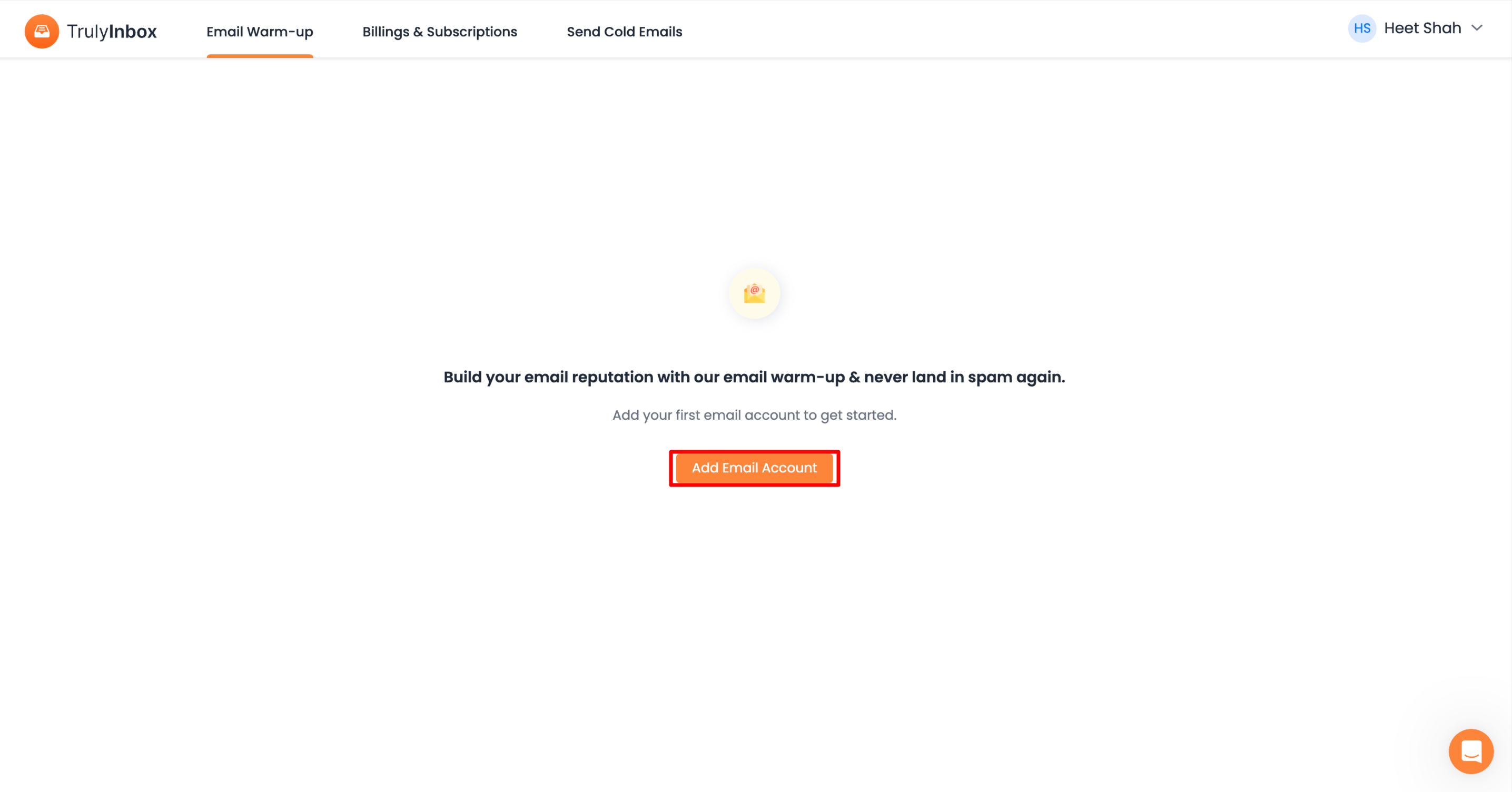
Step 2: Connect via SMTP/IMAP
Next, choose "SMTP/IMAP Account" and click "Connect.
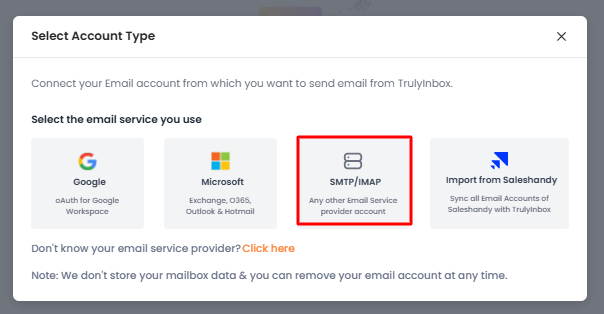
For this, go with "Single Account."

Step 3: Enter Your Details
In the email address provider, select "Google/Gsuite" and enter your Google email address. If you want to add an Alias email account, turn on "Use different username"
Step 4: Enter SMTP/IMAP Details
Enter the following SMTP/IMAP details for google:
SMTP Server: smtp.gmail.com (replace with the actual server details if different)
SMTP Port: 587 (or 465 for SSL/TLS)
IMAP Server: imap.gmail.com (replace with the actual server details if different)
IMAP Port: 993
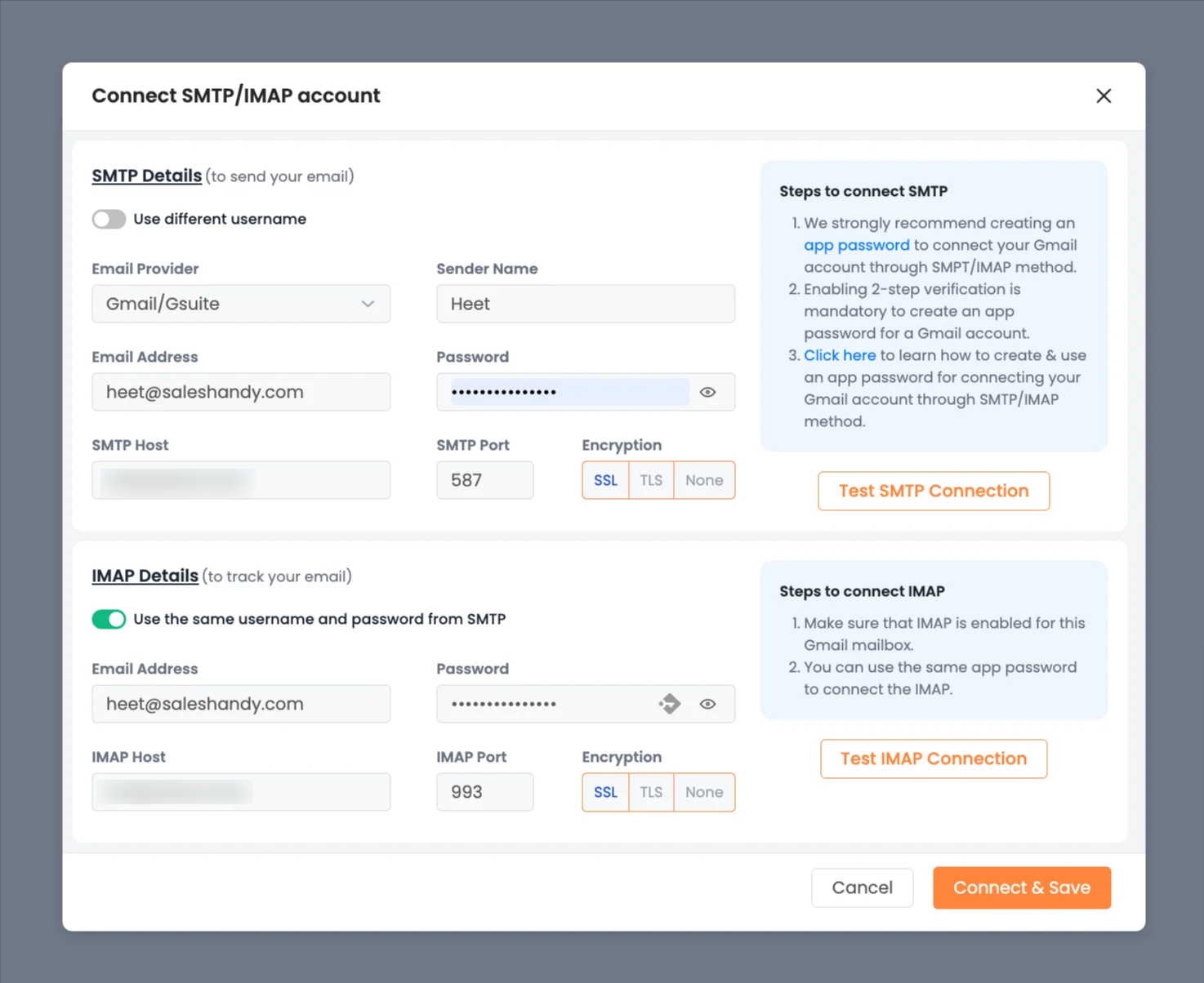
Validate everything. Enter your email address, and the password will be the one you set up for your Google email.
Step 5: Connect and Save
Once you’ve entered all the details, click "Connect" and then "Save."
That’s it! You’ve just configured your Google email with Trulyinbox. Now, you’re ready to send and receive warmup emails.
What Happens Next
Your Google email account is now connected to TrulyInbox. Warm-up emails will begin sending and receiving based on your warm-up settings, helping improve your email deliverability over time.
If you face any issues during setup, verify your credentials or contact the support team for assistance.
Also check
Understanding Which Connection Method to Use And When
How to connect your email account with Google Oauth in TrulyInbox
How to fix SMTP/IMAP "Could not authenticate" error?
How Does TrulyInbox Email Warm-up Work?