What Domain and IP Blacklists Are (and How to Remove Them)
Learn what domain and IP blacklists are and how to quickly remove your listing from major blacklist providers.
What are domain and IP blacklists?
Domain and IP blacklists are databases used by email providers to identify senders that may be sending spam or harmful emails.
When you send an email, the receiving server checks these lists. If your domain or IP is listed, your email may be blocked, rejected, or sent to spam.
These lists are maintained by organisations like Spamhaus and UCEPROTECT.
Why your domain or IP may be listed
A listing does not always mean you did something wrong. It can happen if:
The IP was previously used by another sender
The domain had past reputation issues
You are using shared infrastructure
There was a security issue
Why this matters
Blacklist listings can:
Block your emails
Send emails to spam
Reduce your sender reputation
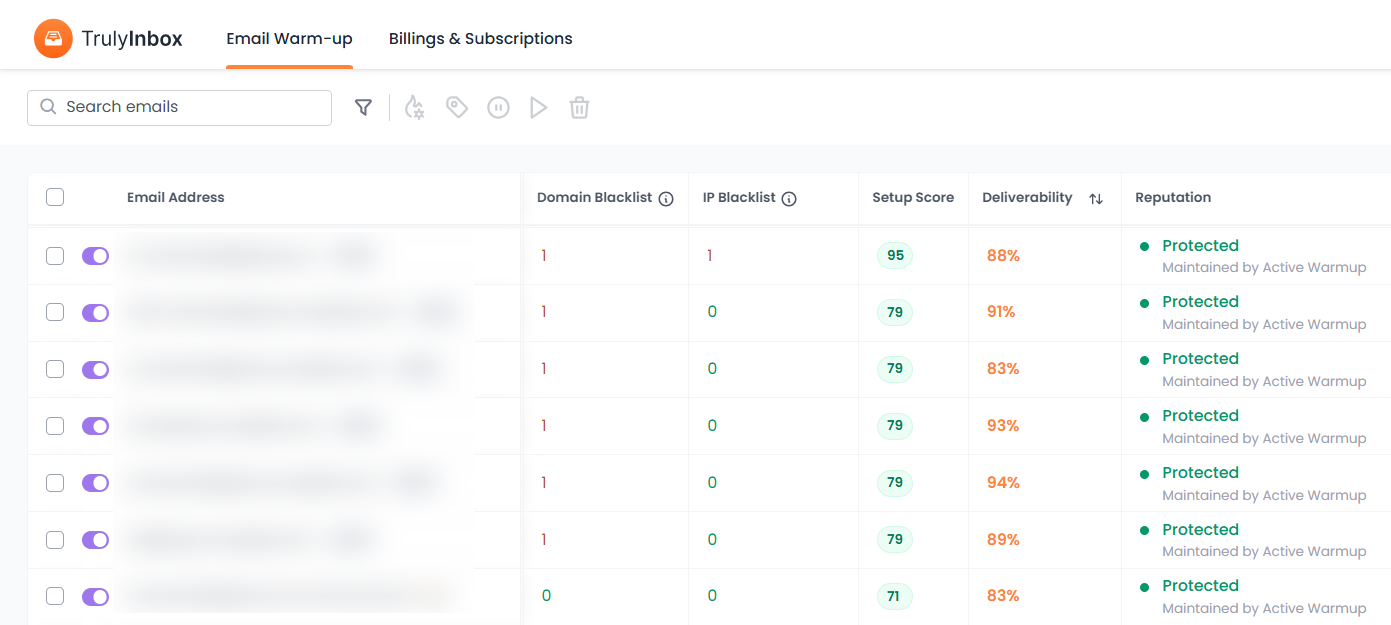
Check blacklist status in TrulyInbox
Go to your dashboard
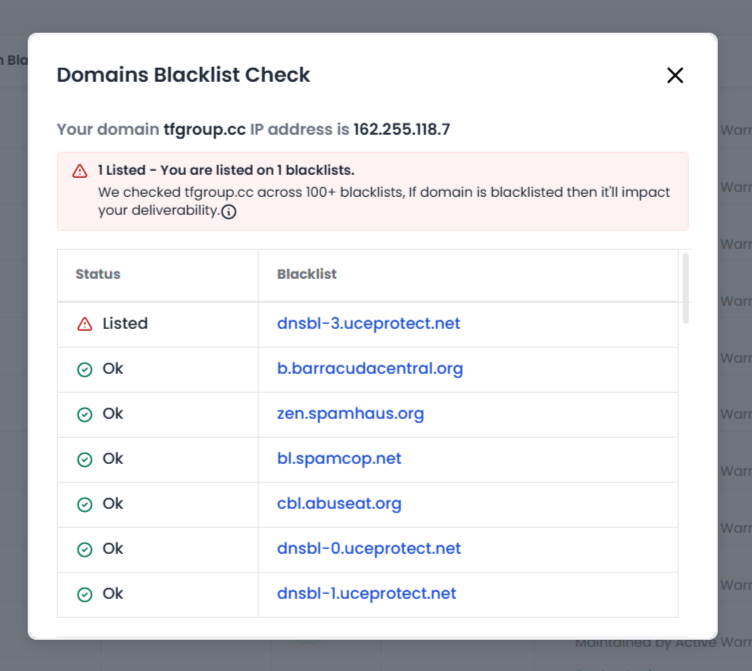
Click on the blacklist count. (If you don’t see the blacklisting column, enable the “Domain Blacklisted” and “IP Blacklisted” columns to view it)
View all listings
How to remove your domain or IP from blacklists
Follow the steps based on the provider.
1. Spamhaus (DBL/Zen/All)
Go to Spamhaus IP/Domain Reputation
Enter your domain and/or IP. If listed, click the provided “Removal” link and explain the fix (e.g. cleaned list, secured account).
Submit and wait 24–48 hours for processing.
Sample request (via form): Provide domain/IP, your contact email, and describe your fixes (no separate email template needed). Required info: IP/domain, explanation of fixes. No fee (free service) .
2. Barracuda BRBL
Visit Barracuda’s removal page: barracudacentral.org/rbl/removal-request.
Enter your mail server’s IP, your contact email and phone, and a brief reason/explanation.
Submit the form. Sample request (via form): “IP Address: 1.2.3.4; Email: [email protected]; Phone: 123-456-7890;
Reason: We have identified and fixed the spam issue (secure the server, cleaned list). Please remove us from your list.” Required info: IP, email, phone, and removal reason.
Turnaround: Typically reviewed within ~12 hours. No fee.
3. SpamCop SCBL
No manual request needed. SpamCop automatically expires your listing ~24 hours after spam reports stop.
If you received a SpamCop report email, use the link in that email to see details and confirm spam sources.
Sample request: Not applicable (SCBL delists automatically). Required info: N/A (automated).
Turnaround: ~24 hours once no new reports come in.
4. SpamRATS (RBL)
Go to the SpamRATS removal page: spamrats.com/removal.php.
Enter your IP in the form to check the status. If listed, the page will indicate so.
If no automatic option is given, use the Contact link on that page to send a removal request. Sample request (via contact page): Provide your IP, explain that you have secured your mail server (patched system, changed passwords), and request delisting.
Required info: IP address, brief explanation of fix. No fee mentioned.
Turnaround: Unspecified; likely a few hours to days after confirmation
5. SPFBL (LashBack UBL)
Go to spfbl.net/en/delist/.
Confirm your listing code: (0.2 means complaint-driven; 0.3 means RFC issues). Only those codes can delist. For a free delist, ensure technical compliance: your IP’s rDNS points to your domain,
WHOIS is public, etc.. Enter your IP on the page. If all checks pass, the system will delist it . If you fail the free criteria, use the paid delist via PayPal (see instructions on that page) . Sample request: N/A (handled by their webform).
Required info: IP address (and indirect data like valid rDNS, WHOIS). See [36].
Turnaround: Instant if eligible; otherwise, paid path adds your PayPal and must meet criteria
6. Mailspike RBL (z.bl, bl, ipv4.bl)
Go to mailspike.io IP Lookup.
Enter your IP and click “check”, then click “delist” if prompted. The IP will be removed from Mailspike’s lists within ~6–36 hours.
Sample request: N/A (use web interface). Required info: IP address. Explanation not needed on form.
Turnaround: ~6–36 hours . No fee (free service).
7. Leadmon SpamGuard
First, confirm your IP or domain is listed using your dashboard or any blacklist checker
Send an email to [email protected]
Include your IP/domain and a short explanation
Subject: Delist Request for [Your IP]
Hello,
My IP [Your IP or domain] is listed on your blacklist.
The issue has been resolved.
Please remove it from your list.Thank you.
Required: IP or domain
Turnaround: Usually a few day
8. DroneBL
Go to: dronebl.org
Enter your IP in the lookup section
Use the delist option shown on the page
Required: IP address
Turnaround: Depends on review
9. UCEPROTECT
UCEPROTECT listings depend on levels:
Level 1 (your IP only)
→ Removed automatically after a few days or via paid optionLevel 2 & Level 3 (network level)
→ Cannot be removed directly
→ Your hosting provider must resolve it
For Level 3:
Go to: https://www.uceprotect.net/en/rblcheck.php
Enter your IP and confirm the listing
Contact your hosting provider / ISP and share your IP
Ask them to fix the issue on their network
If needed, switch to a new IP or provider
Note: Level 2 and Level 3 are network-based and cannot be removed by end users
Required info: IP address
Turnaround: Depends on the provider
Cost: Free
Final note
Blacklist removal depends on the provider. Some listings are removed automatically, while others require a quick request or help from your hosting provider.
You can always track your blacklist status from your TrulyInbox dashboard by clicking on the blacklist count.
If you’re unsure about any step, our support team is here to help.