Integrating Saleshandy with TrulyInbox
Learn how Saleshandy users can unlock TrulyInbox by syncing their subscription using the Saleshandy API.
Hello Saleshandy users,
If you already have a Saleshandy account, you can use TrulyInbox without purchasing a separate subscription. To enable this, you simply need to sync your Saleshandy subscription with TrulyInbox using the Saleshandy API.
Once connected, your email accounts from Saleshandy will automatically sync with TrulyInbox, helping you manage warmup and deliverability without setting up everything again.
Why Connect Saleshandy with TrulyInbox
After completing the integration:
• Your Saleshandy subscription will unlock access to TrulyInbox
• All existing email accounts in Saleshandy can be imported into TrulyInbox
• Any new email accounts added in Saleshandy will automatically sync with TrulyInbox
• No need to manually add the same accounts in both platforms
This one time setup keeps both platforms connected and removes duplicate work.
How to Integrate Saleshandy with TrulyInbox
Step 1: Generate an API Key in Saleshandy
Log in to your Saleshandy account
Go to Settings
Open API Key Management
Click Generate New API Key
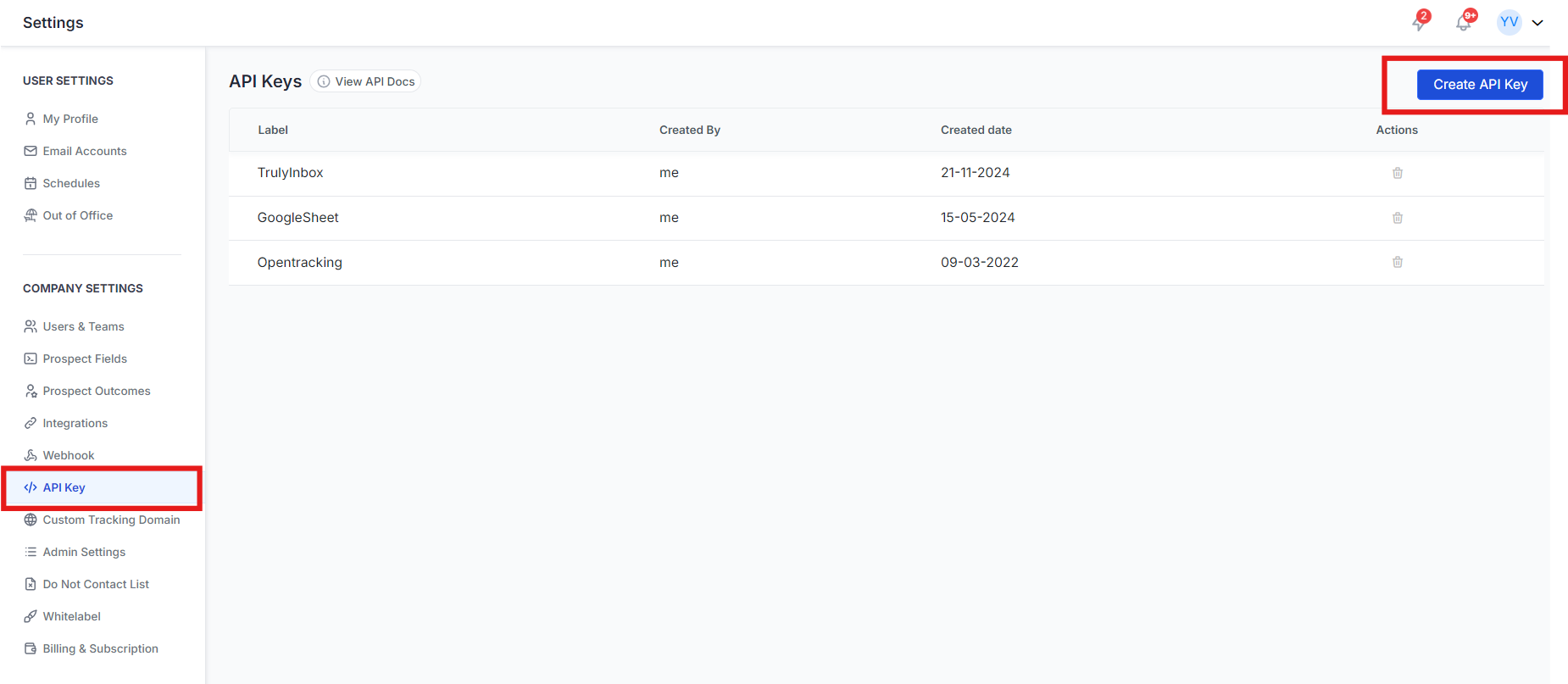
Copy the generated API key. You will need it in the next step.
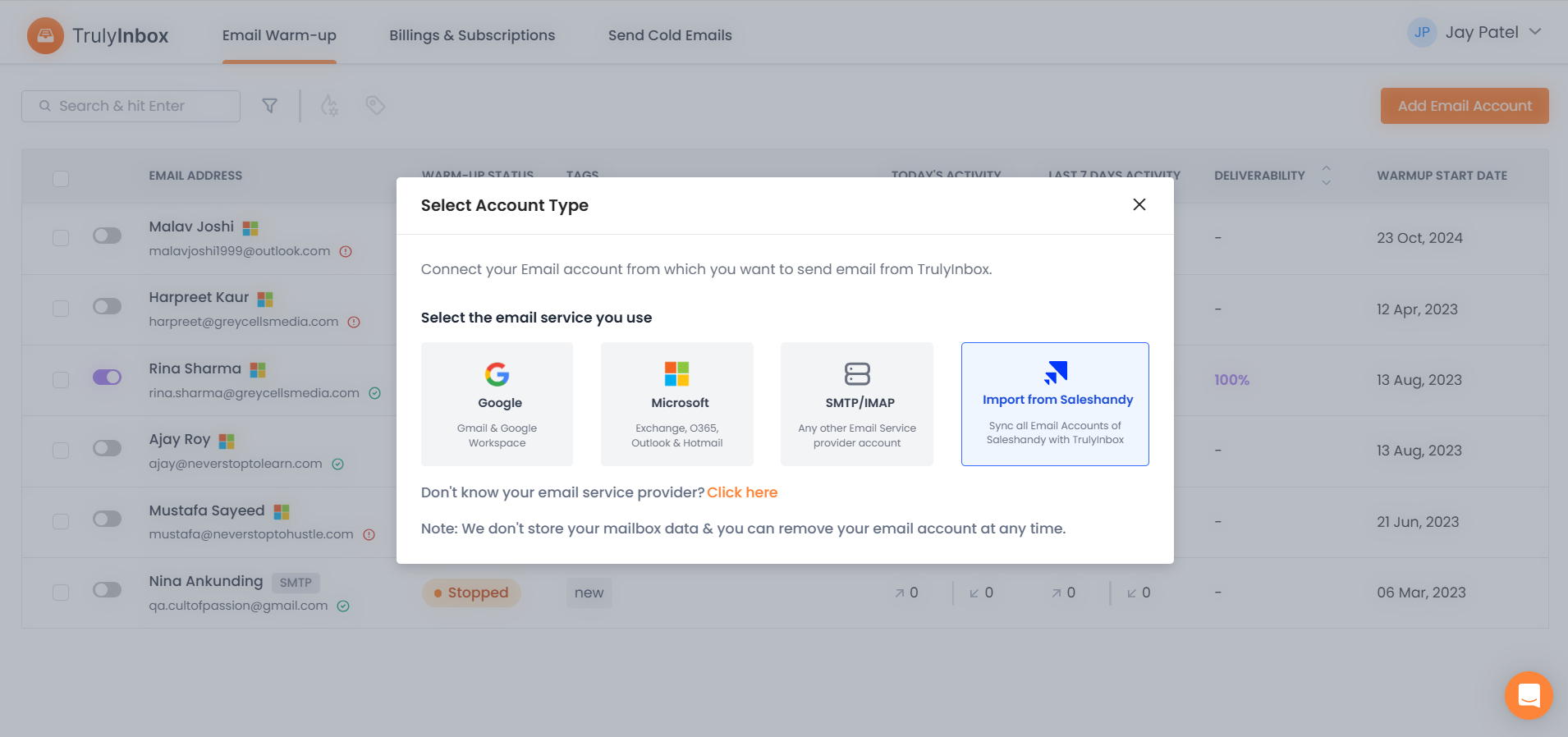
Step 2: Add the API Key in TrulyInbox
Log in to your TrulyInbox account
Click Add Email Account
Select Import from Saleshandy
Paste the API key in the provided field.
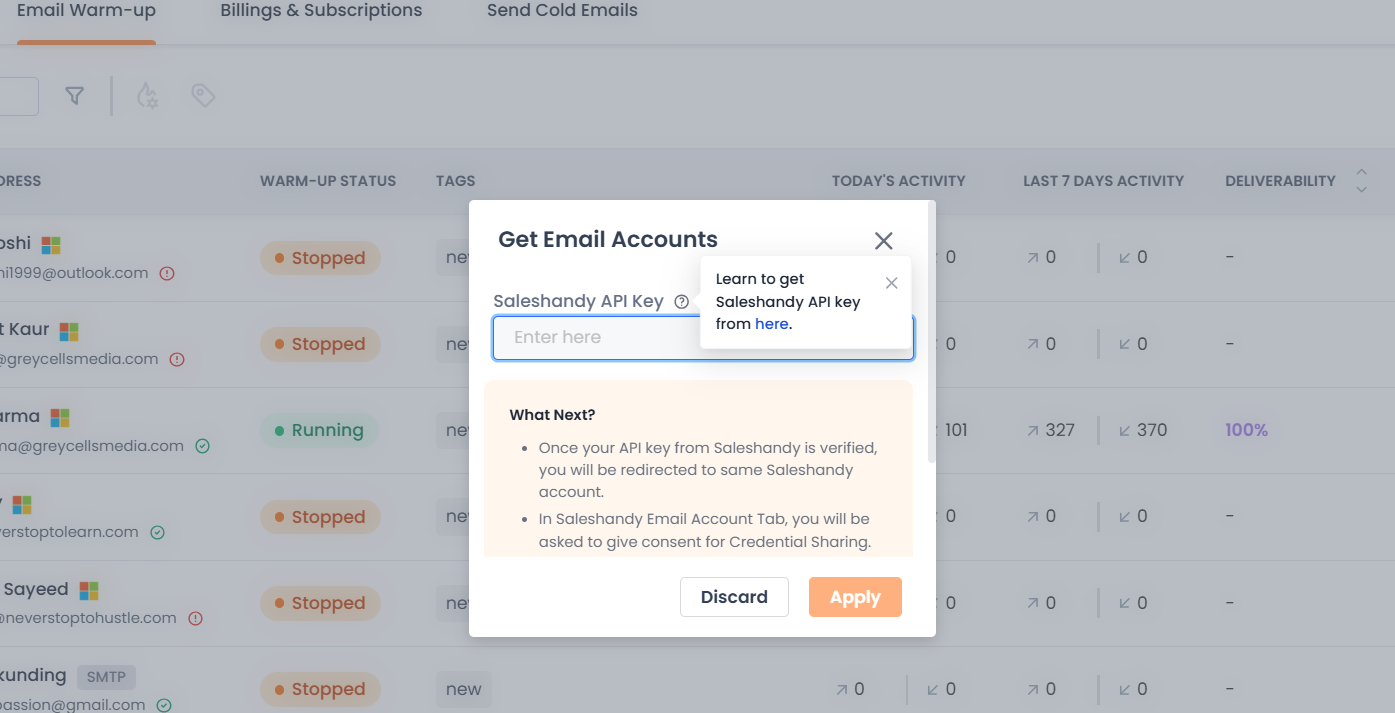
Step 3: Authorize the Integration
Click Apply
You will be redirected to Saleshandy for authorization
Provide consent to allow Saleshandy to share email account details with TrulyInbox
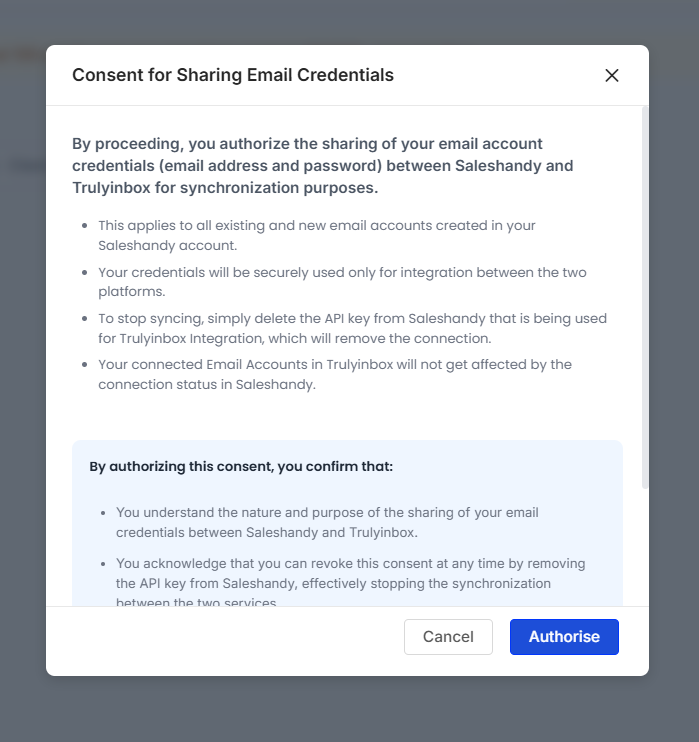
Only the Owner or Admin of the account can approve this authorization.
Step 4: Sync and Verify
Once the integration is completed:
• Email accounts imported from Saleshandy will appear in TrulyInbox
• Imported accounts will have the tag “Saleshandy Imported”
• SMTP/IMAP accounts will sync automatically
For Google Workspace or Microsoft 365 accounts, you may need to manually complete the connection by entering the password.
Integration Limitations
Single API Key per Account
Only one API key can connect a Saleshandy account with a TrulyInbox account.
This means one Saleshandy account can be linked to only one TrulyInbox account.
Admin Authorization Required
Only the Owner or Admin can approve the integration and provide consent.
How to Revoke the Integration
If you want to disconnect Saleshandy from TrulyInbox:
Log in to Saleshandy
Go to Settings → API Key Management
Delete the API key used for the integration
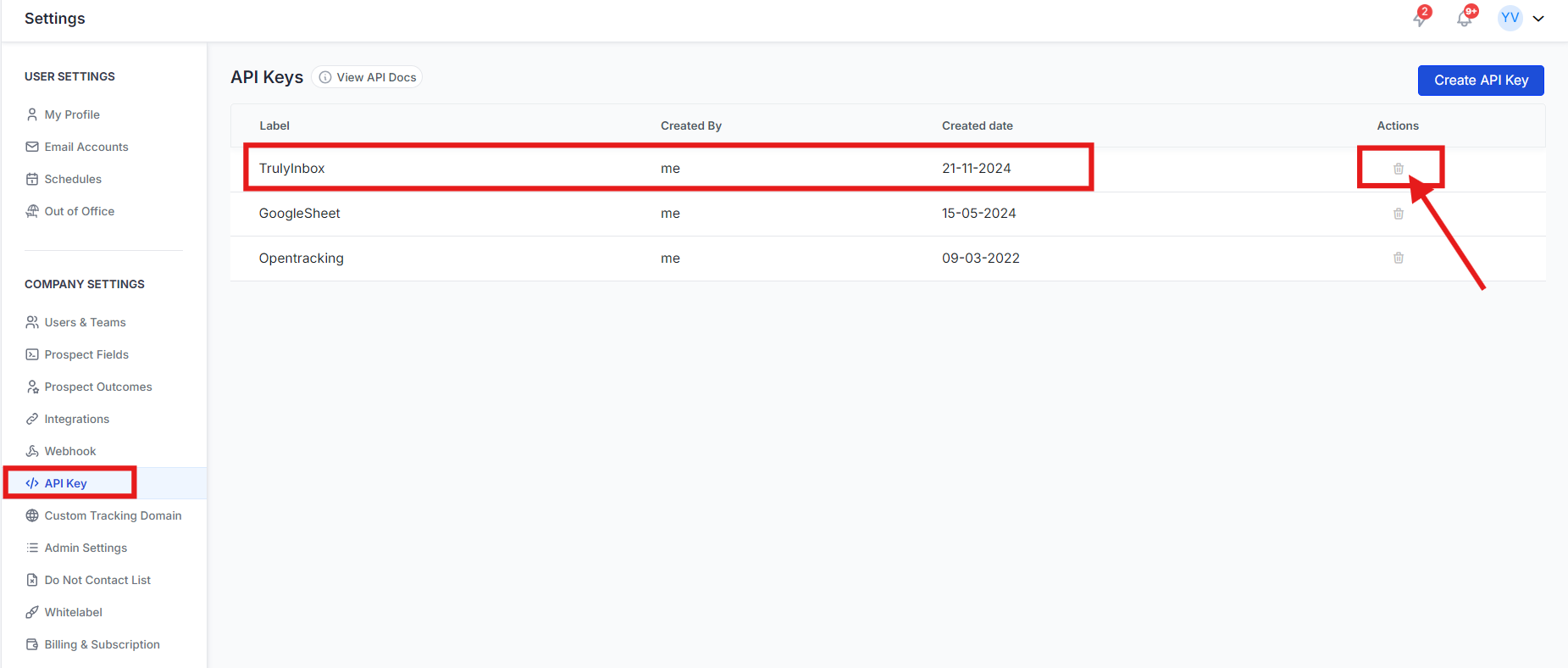
Once deleted, syncing will stop immediately.
However, email accounts that were already imported into TrulyInbox will remain available.
FAQs
Will future email accounts added in Saleshandy sync automatically?
Yes. After the integration is completed, any new email accounts added in Saleshandy will automatically appear in TrulyInbox. No additional setup is required.
What happens if I connect Gmail or Outlook directly in Saleshandy?
If your accounts are connected using Google Workspace / Gmail or Microsoft 365 / Outlook authentication, they will appear in TrulyInbox but require manual connection.
You will need to enter the password in TrulyInbox to complete the setup.
For Gmail accounts, you may also need to create an App Password.
I am already a paid TrulyInbox customer. Do I need to do anything?
No additional changes are required.
An API key named saleshandy-trulyinbox-email-sync-api-key is already created for mapped accounts. You simply need to provide the authorization consent.
Your plan and existing setup will continue working as before.
How can I identify which accounts were imported from Saleshandy?
Accounts synced from Saleshandy will display a “Saleshandy Imported” tag next to the email account name in TrulyInbox.
This helps you easily distinguish between manually connected accounts and imported accounts.
If you want, I can also help you create a shorter Intercom style version of this article (much cleaner for help centers). It will reduce this to around 40% length but keep everything important.